Word to PDF
Word to PDF Converter: Convert DOCX to PDF Online
Need to convert Word to PDF online? FunnLearn’s free Word to PDF Converter turns your .docx file into a downloadable PDF in seconds. It runs in your browser, so your document is not uploaded to our server. It is handy for assignments, worksheets, lesson plans, forms and everyday office files.
Your browser does not support the features this converter needs. Please try a recent version of Chrome, Edge, Firefox or Safari.
Convert Word to PDF
Drag & drop your Word file here
or
Supported: .docx (Word 2007 or newer). Old .doc files are not supported; open them in Word and use Save As > .docx. Maximum size: 10 MB.
Success! Your PDF is ready.
Privacy: Your document is processed locally in your browser and is not uploaded to or stored on our server. Only the converter’s code libraries are downloaded from a public CDN when you click Convert. No tool can guarantee perfect results or absolute security.
How to Convert Word to PDF
- Click Choose .docx file or drag your Word document into the upload area.
- Check the file name and size shown, then press Convert to PDF.
- Wait while the progress bar completes. Longer documents take more time.
- Click Download PDF to save the file, or Convert Another File to start again.
Benefits of Using FunnLearn’s Word to PDF Converter
Free and simple
Convert DOCX files to PDF with no sign-up and no watermark.
Private by design
Your file stays in your browser instead of being sent to a server.
Works on any device
Use it on a laptop, tablet or phone with a modern browser.
Easy to share
A PDF is simple to email, print or submit with a consistent page size.
Supported Files and Conversion Limitations
This DOCX to PDF converter accepts .docx files only. It reads the content of your document and rebuilds it as a simple A4 PDF, so the result may differ from what Word produces.
Usually kept: headings, paragraphs, bold, italic and underlined text, bulleted and numbered lists, basic tables, images, and manual page breaks.
Not kept or not supported:
- Original fonts, text colours, text alignment, exact spacing and column layouts.
- Headers, footers and page numbers.
- Text boxes, shapes, charts, SmartArt and other embedded objects.
- Original table borders and shading (a simple border is applied instead).
- Old .doc files, macro-enabled files and password-protected files.
The PDF is created from page images, so text in it cannot be selected or searched, links are not clickable, and files can be larger than usual. Very long documents are drawn at lower resolution, and on some phones they may fail; splitting them into smaller files helps.
Frequently Asked Questions
How do I convert a Word document to PDF online?
Upload a .docx file using the converter above, press Convert to PDF, then click Download PDF when it finishes.
Is FunnLearn’s Word to PDF Converter free?
Yes. It is free to use, with no registration and no watermark added to your PDF.
Can I convert DOCX files on my mobile phone?
Yes, it works in modern mobile browsers. Large or image-heavy documents can be demanding for phones, so if a conversion fails, try a smaller file or a computer. If the download does not start, check your browser’s downloads list.
Are my Word documents uploaded to a server?
No. Your document is processed in your browser and is not sent to or stored on our server. The converter’s code libraries are loaded from a public CDN when you click Convert, but your file contents are not sent to it.
Does the converter support old .doc files?
No. Only .docx files are supported. To convert an older .doc file, open it in Microsoft Word or another word processor and save it as .docx first.
Will my PDF look exactly like the original Word document?
Not always. The tool keeps structure such as headings, lists, tables and images, but fonts, colours, alignment, headers, footers and page numbers are not preserved. Check the PDF before sharing it.
What should I do if my document fails to convert?
Check that the file is a genuine, unprotected .docx under the size limit. Then try a smaller or simpler version, split long documents, refresh the page, or use another browser.
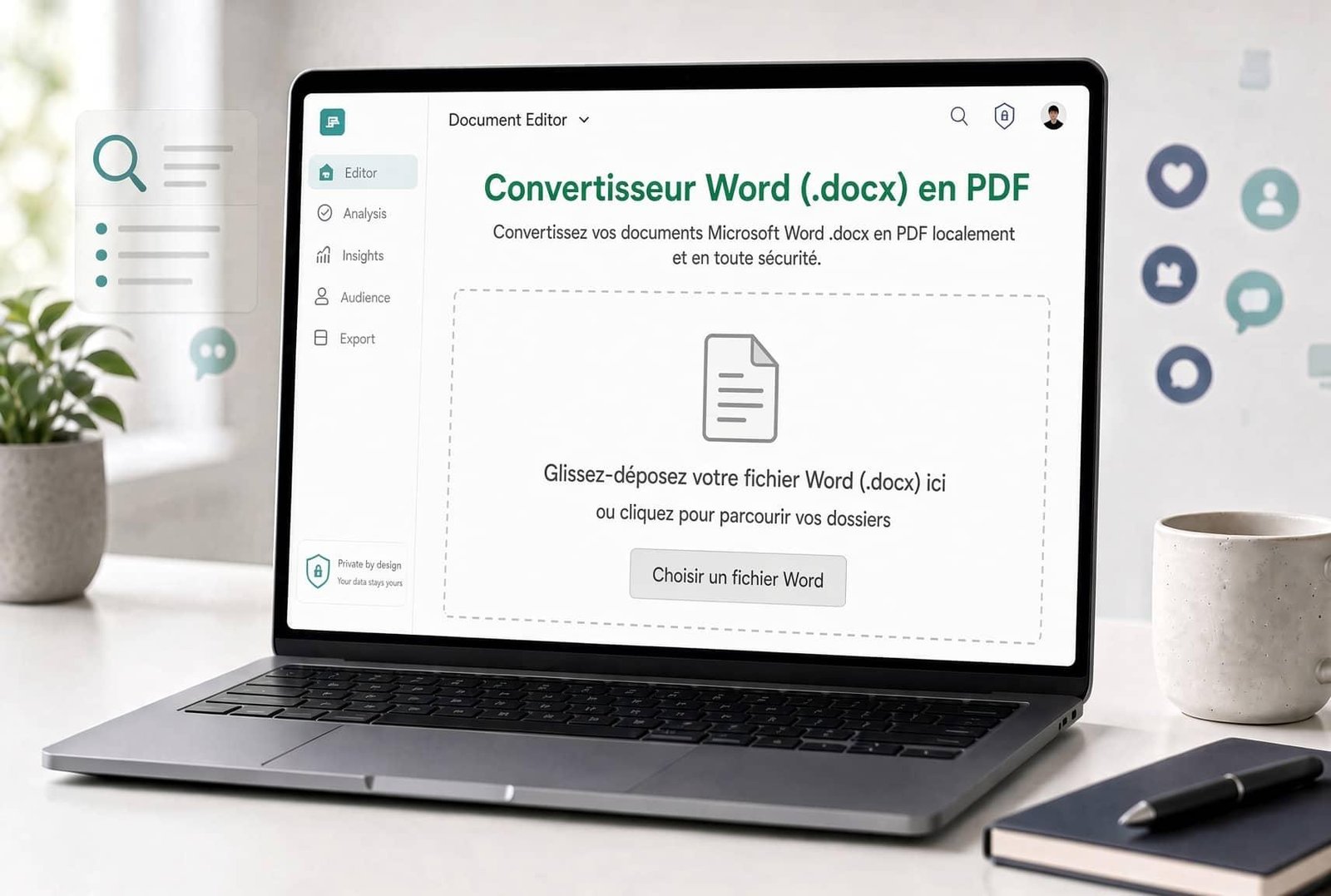
Word to PDF Converter – Convert DOCX to PDF Online Free
Need to convert a Word document to PDF online? The free FunnLearnn Word to PDF Converter helps you convert DOCX files into downloadable PDF documents directly in your browser. It is useful for students, teachers, parents, office professionals and anyone who needs a convenient way to create PDF files.
Whether you are preparing school assignments, printable worksheets, lesson plans, business documents, invoices, forms or reports, converting a Word document to PDF makes it easier to share and print your files.
Our online DOCX to PDF converter is designed to be simple to use. Select your Word file, start the conversion and download the resulting PDF without creating an account.
Convert Word to PDF Online
Use the FunnLearnn Word to PDF tool on this page to convert supported .docx files into PDF format.
The converter works in your browser, so your selected document is processed locally rather than uploaded to our server. The tool may download conversion libraries from a public content delivery network when you start the conversion.
How to convert Word to PDF:
Click Choose .docx File or drag your Word document into the upload area.
Check the selected filename and file size.
Click Convert to PDF to start the conversion process.
Wait for the progress indicator to finish.
Click Download PDF to save the converted file.
Select Convert Another File if you want to convert another document.
For better results, use a modern browser and a reasonably sized DOCX document. If a large file fails to convert, try splitting it into smaller documents and converting each part separately.
What Is a Word to PDF Converter?
A Word to PDF converter is a tool that changes a Microsoft Word document into a Portable Document Format (PDF) file.
Word documents are commonly used to create and edit text, worksheets, reports, letters and other documents. PDF files are useful when you want to share a document in a widely supported format that is convenient for viewing, printing and distributing.
Converting DOCX to PDF can help when submitting assignments, sharing business documents, sending forms by email or preparing printable educational materials.
However, different converters use different conversion methods. Some reproduce the original Word layout more accurately than others. FunnLearnn’s current browser-based converter rebuilds supported document content into a simple A4 PDF, so the output may not look exactly like the original Word file.
Benefits of Using FunnLearnn Word to PDF Converter
1. Free Online Conversion
Convert supported DOCX files without paying for an individual conversion or creating an account. The tool is designed for everyday document conversion needs.
2. No Watermark Added by the Tool
The converter is designed to generate PDFs without adding a FunnLearnn watermark. Always review your downloaded file before sharing it.
3. Browser-Based Document Processing
Your selected document is processed locally in your browser rather than uploaded to our server. Conversion libraries may be downloaded from a public CDN, and your browser environment still matters for privacy and security.
4. Convenient on Different Devices
You can access the converter on a computer, tablet or smartphone with a compatible modern browser. Performance may vary depending on your device, browser memory and document size.
5. Useful for Education
Teachers, parents and students can use Word documents to prepare educational materials and then convert them into PDFs for printing or sharing.
For additional educational resources, explore our Activities for Kids and Learning Resources pages.
6. Easy to Share and Print
PDF files are widely supported by browsers, computers and mobile devices. They are convenient for sharing documents by email, storing records and preparing files for printing.
Supported Word Files and Conversion Limitations
The current FunnLearnn Word to PDF Converter accepts .docx files only. It rebuilds supported content into a simple A4 PDF, so the result may differ from the original Microsoft Word document.
What the Converter May Preserve
Depending on the document, the converter may preserve:
Headings and paragraphs.
Bold, italic and underlined text.
Bulleted and numbered lists.
Basic tables.
Images supported by the conversion process.
Manual page breaks.
The result depends on the structure and features used in the original Word document.
What May Not Be Preserved Accurately
The current converter does not reproduce every Word formatting feature. You may notice differences in:
Original fonts, text colours and alignment.
Exact spacing, margins and column layouts.
Headers, footers and page numbers.
Text boxes, shapes, charts and SmartArt.
Original table borders and shading.
Complex layouts and embedded objects.
The PDF is generated from page images. As a result, its text cannot be selected or searched, and links may not remain clickable. Output files can also be larger than text-based PDFs.
Very long documents may be rendered at lower resolution or fail on devices with limited memory.
Need to convert an important document? Always open the resulting PDF and check the layout, images, page breaks and readability before sending or printing it.
Word to PDF Converter for Students, Teachers and Parents
A DOCX to PDF converter can be useful in education and at home.
For Students
Students can prepare reports, assignments, project work and written submissions in Word before converting supported documents into PDF format.
For Teachers
Teachers can prepare lesson notes, classroom handouts, instructions and printable activities. PDF files are convenient when distributing documents to students or parents.
For Parents
Parents can organise learning materials, activity instructions and educational documents for home use. Explore FunnLearnn Activities for ideas and Parenting Tips for guidance on supporting children’s learning.
For Office Professionals
Office users can convert simple letters, reports, forms and other everyday DOCX documents into PDF files for convenient distribution.
For documents with strict formatting requirements, official forms, invoices or letterheads, inspect the PDF carefully before using it.
How to Get Better Word to PDF Results
Follow these tips to reduce conversion problems:
Use a DOCX file: Save your document in the modern Word
.docxformat rather than the older.docformat.Keep formatting simple: Avoid complex columns, floating text boxes and intricate page layouts when possible.
Check images: Make sure pictures display correctly in the original Word document before converting.
Review page breaks: Long paragraphs, tables and images may flow differently in the converted PDF.
Try smaller files: If a large document fails, divide it into smaller documents and convert them separately.
Check the finished PDF: Open every page to verify readability, images and spacing.
If you require a PDF that preserves complex Word formatting, headers, footers, selectable text and clickable links, consider using Microsoft Word’s built-in PDF export or another conversion method designed to preserve document layout.
You can learn more about Microsoft’s document options through Microsoft Support.
Is It Safe to Convert Word to PDF Online?
Privacy is an important consideration when using any online document tool.
FunnLearnn’s current converter processes the selected DOCX document locally in your browser rather than uploading the file to our server. Conversion libraries may be downloaded from a public CDN when you start the process.
However, browser-based processing does not guarantee absolute security. Your device, browser extensions, downloaded libraries and the contents of your document may affect privacy.
For confidential documents containing financial details, identity information, passwords or sensitive business data, consider using a trusted offline conversion application. Avoid uploading or processing sensitive information through tools you do not trust.
Frequently Asked Questions About Word to PDF Conversion
1. How do I convert a Word document to PDF online?
Select your supported .docx file in the FunnLearnn converter, click Convert to PDF, wait for processing to finish and download the resulting PDF.
2. Is the FunnLearnn Word to PDF Converter free?
The converter is designed to be free to use without an account or an added watermark.
3. Can I convert Word files on my mobile phone?
Yes, you can try the converter on a compatible mobile browser. Large documents may be slower or fail because of device memory limitations.
4. Are my Word documents uploaded to a server?
The current converter processes the selected document locally in your browser rather than uploading it to our server. Conversion libraries may be downloaded from a public CDN.
5. Does the converter support old .doc files?
No. The current tool accepts .docx files only. Save older Word documents as .docx using compatible word-processing software before converting.
6. Will my PDF look exactly like the original Word document?
Not always. The converter rebuilds supported content into a simple A4 PDF. Complex formatting, headers, footers, fonts, page layouts and embedded objects may not be preserved accurately.
7. Can I select or search the text in the converted PDF?
The current converter generates the PDF from page images, so the text is not selectable or searchable like ordinary text-based PDF content.
8. Why is my Word document not converting?
Possible causes include an unsupported file format, a large document, complex content, insufficient browser memory or a temporary browser issue. Try a smaller DOCX file, refresh the page or use another modern browser.
9. Can I convert multiple Word files at once?
The current workflow is designed to convert a selected DOCX file at a time. Convert files individually unless the tool explicitly supports batch conversion.
10. How can I convert a PDF back to Word?
PDF-to-Word conversion requires a separate tool. Microsoft Word and other document applications may offer options to open or convert compatible PDF files. Check the resulting document carefully because formatting may change.
Explore More Free Online Tools
FunnLearnn offers useful tools and learning resources to help with everyday tasks.
Image to PDF Converter – Explore options for turning supported images into PDF documents.
Merge and Split PDF – Visit our PDF tools page for combining or separating PDF documents.
Image Compressor and Converter – Explore image conversion and compression options.
JSON Formatter and Validator – Format and validate JSON data.
FunnLearnn Activities – Find educational activity ideas for children.
Learning Resources – Explore resources to support learning at home.
Convert DOCX to PDF with FunnLearnn
The FunnLearnn Word to PDF Converter provides a convenient way to turn supported Word documents into downloadable PDFs directly in your browser.
Use it for simple documents, educational materials and everyday office files. Remember to review the finished PDF, especially when your original document contains pictures, complex tables, headers, footers or detailed formatting.
Explore more FunnLearnn online tools to simplify everyday tasks and discover useful educational resources for your family.