Image compressor & Converter
Loading the tool... If this message does not disappear, please reload the page and make sure JavaScript is enabled.
Choose your images
Results
No images yet. Choose some images above and the smaller versions will appear here.
Your images are processed on your device and are never uploaded. Saving them again removes hidden data such as camera details and GPS location, and may slightly change colors. Animated images keep only their first frame.
Free Image Compressor & Converter Online
Introduction
Looking for a simple way to reduce image file sizes without complicated software? FunnLearnn’s free Image Compressor & Converter helps you compress images, convert supported image formats, and resize pictures for websites, blogs, online stores, documents, and everyday use.
Large image files can take longer to upload, consume more storage, and slow down web pages. Compressing your images can help reduce file sizes and make them easier to share. Whether you are preparing photos for your website, optimizing blog images, or reducing pictures before sending them by email, an online image compressor can make the process more convenient.
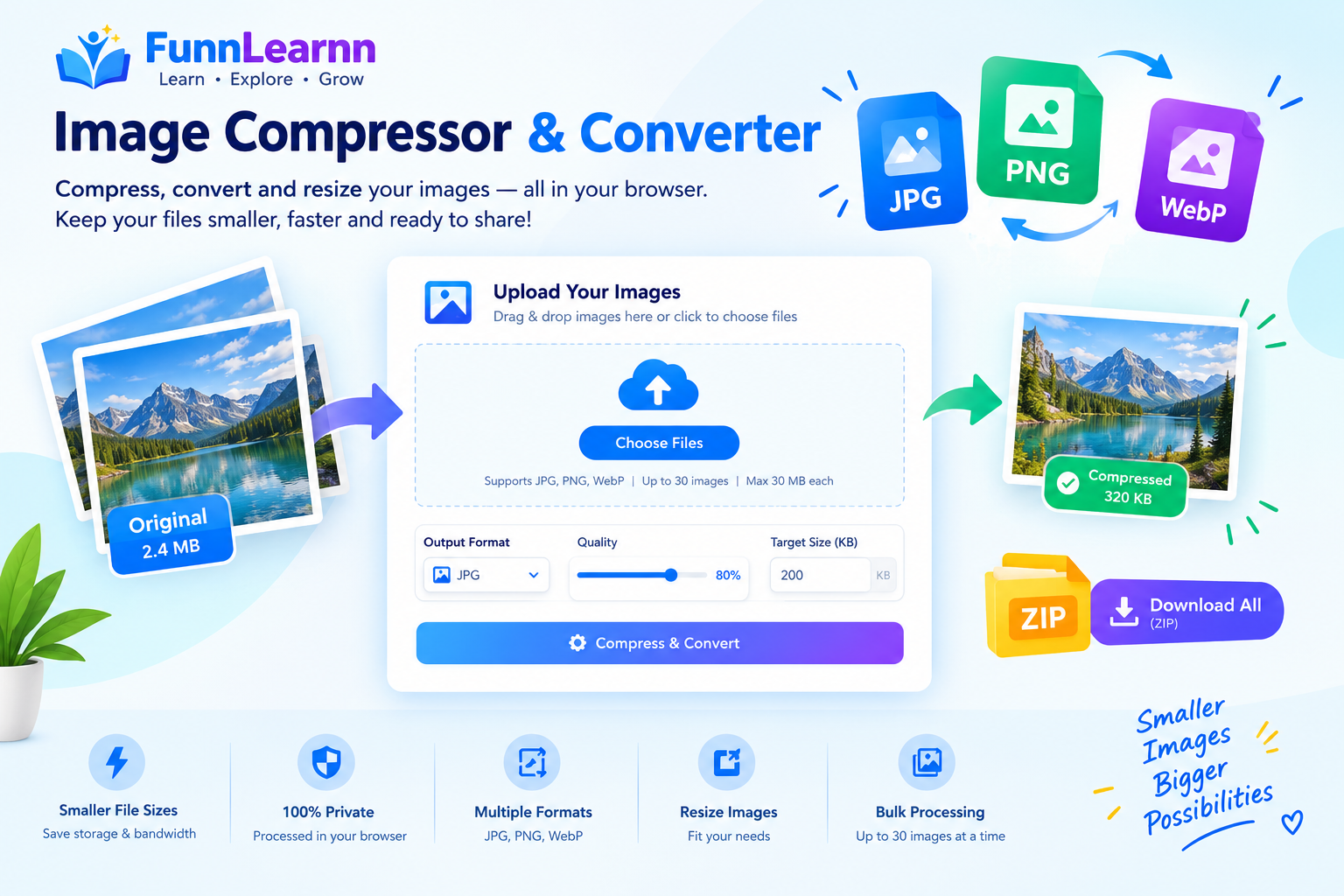
Add your supported images, choose an output format, adjust the available quality or size settings, and download the processed files. Depending on the features available in the tool, you may also resize images or download multiple results together.
How to Use the Image Compressor & Converter
Follow these simple steps to get started:
Select your images: Drag and drop your images into the upload area or click the selection box to browse your device.
Choose an output format: Select a supported format such as JPEG, PNG, or WebP.
Adjust compression settings: Choose the available image quality, target file size, or maximum width according to your needs.
Review the results: Compare the original file size with the compressed output where the tool provides this information.
Download your images: Save the processed files individually or use the bulk download option if it is available.
For the best results, keep a copy of your original images. Review the output before replacing important files, especially when image quality and dimensions matter.
Why Compress Images?
Image compression reduces the amount of data required to store an image. Depending on the format and settings, it can make files considerably smaller while maintaining an acceptable visual appearance.
Improve Website Loading
Large images can contribute to slow-loading pages. Optimizing image sizes can help reduce page weight and improve the experience for visitors, especially on mobile connections. Image compression is one part of website optimization; hosting, caching, image dimensions, and other factors also affect performance.
Save Storage Space
Compressed images use less storage when the output file is smaller than the original. This can help when organizing photos, preparing documents, or managing a large collection of graphics.
Share Images More Easily
Smaller files can be more convenient to attach to emails, upload to online forms, and share through messaging services. Always check the file-size requirements of the service you are using.
Prepare Images for Blogs and Online Stores
Bloggers, website owners, and online sellers often need optimized product photos, banners, thumbnails, and illustrations. Compressing images before publishing can help control file sizes and support a smoother browsing experience.
Which Image Format Should You Choose?
Choosing the right format depends on what your image contains and how you intend to use it.
JPEG or JPG
JPEG is commonly used for photographs and realistic images with many colours. It uses lossy compression, which means some image information is discarded to reduce file size. It is often a practical choice for travel photos, product pictures, and general photography.
JPEG does not support transparent backgrounds. Repeatedly saving an image with lossy compression may reduce its quality, so keep an original copy.
PNG
PNG is useful for logos, screenshots, diagrams, text-heavy graphics, and images that need transparency. It uses lossless compression, preserving image data, but PNG files may be larger than JPEG or WebP versions of comparable photographs.
Converting a PNG to JPEG can reduce the file size, but transparency will not be preserved. Choose a format that matches the purpose of the image.
WebP
WebP supports both lossy and lossless compression and can support transparency. It can produce smaller files than some traditional formats while maintaining useful image quality. It is often suitable for website images, product pictures, and graphics.
Check that your destination platform or software supports WebP before converting important files.
How to Compress an Image to 200 KB
If you need an image below a particular file-size limit, first check whether the tool offers a target-size option.
Select your image.
Enter 200 KB in the target-size field, if supported.
Allow the tool to adjust the available compression or dimensions.
Download and inspect the resulting file.
Confirm the actual file size before uploading it to another service.
A target size cannot always be achieved without a noticeable quality reduction. If the image remains too large, reducing its dimensions may help. For important photos, compare the final output with the original before using it.
Image Resizing and Quality Settings
Image resizing changes an image’s dimensions, usually measured in pixels. Compression changes how image data is stored. These are related but different processes.
For example, a very large photograph may still be unnecessarily heavy when displayed as a small thumbnail. Reducing its dimensions to suit the intended display size can lower its file size.
Quality settings also affect the balance between file size and appearance. Higher quality usually retains more detail but may produce larger files. Lower quality can create smaller files, although visible artefacts may appear around edges, textures, or text.
Choose settings based on how the image will be used. Website thumbnails may tolerate more compression than photographs intended for printing or detailed design work.
Frequently Asked Questions
Are my images uploaded to a server?
This depends on the actual implementation of the tool. If processing takes place entirely in your browser, the selected image data does not need to be uploaded to a processing server. Confirm the tool’s implementation and privacy information before relying on this statement.
Will image compression reduce quality?
It depends on the format and settings. Lossy compression may reduce image detail, while lossless compression preserves the original image data. Always inspect the result when quality is important.
Can I convert PNG to JPEG?
Yes, if both formats are supported by the converter. Remember that JPEG does not support transparency, so transparent areas may be replaced with a solid background.
Why did my compressed PNG become larger?
PNG compression results depend on the image and the method used to save it. Some images may become larger after processing. For photographs, compare JPEG or WebP output if those formats suit your needs.
Does converting an image remove GPS information?
Metadata handling depends on the tool and its processing method. Do not assume that location information or other metadata has been removed unless the tool has been tested to confirm this.
Can I compress multiple images at once?
If batch processing is enabled, you can select multiple images and process them together. Check the tool’s displayed file-size and image-count limits before selecting your files.
Explore More Free Online Tools
FunnLearnn offers other useful tools for everyday tasks. Try our Images to PDF Converter to combine supported images into a PDF document, or use the Word Counter to count words and characters in your text.
You can also explore our JSON Formatter & Validator for formatting and checking JSON data, and our Percentage Calculator for everyday percentage calculations.
For details about website data practices, please read our Privacy Policy.
Start Compressing and Converting Images
Use the FunnLearnn Image Compressor & Converter to prepare supported images for websites, documents, online sharing, and everyday projects. Choose suitable formats and settings, review the output, and keep original copies of important images.
For the best outcome, balance file size, image dimensions, and visual quality according to your needs.