Free PDF Merger & Splitter Online
Loading the tool... If this message does not disappear, please reload the page and make sure JavaScript is enabled.
1. What do you want to do?
2. Choose your PDF files
No files yet.
3. Settings
Your PDFs are processed on your device and are never uploaded. The page downloads a small open-source PDF library (pdf-lib) from the cdnjs code host the first time you add a file. Password-protected PDFs cannot be opened, and bookmarks and form fields are not kept in the new file.
Introducion
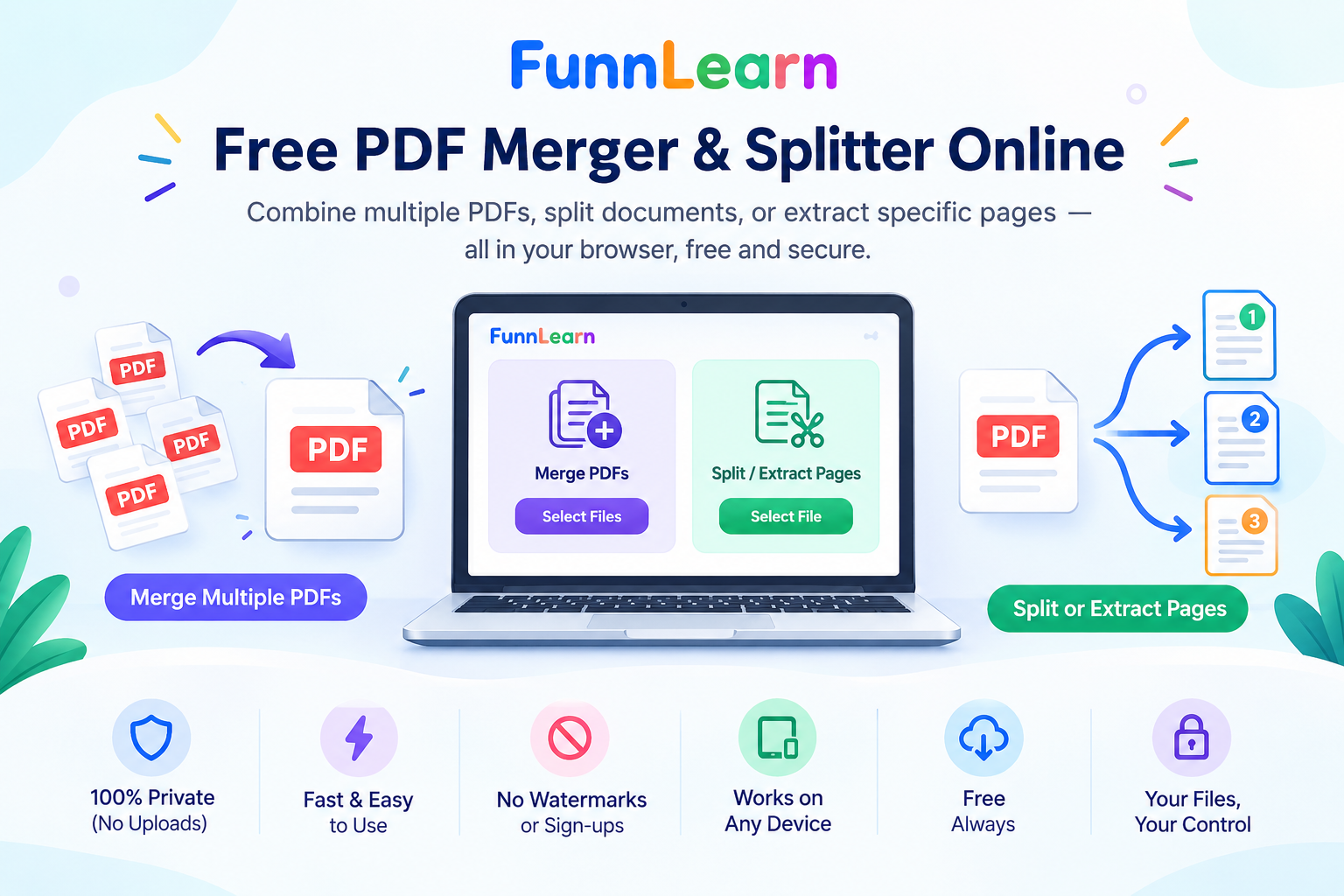
Use this free tool to merge several PDFs into one, extract just the pages you need, or split a long PDF into smaller files. Choose your files, arrange them, and download the result in seconds. The work is done on your own device, so your documents are never uploaded to a server, and there are no sign-ups or watermarks.
How to merge PDFs
- Choose Merge PDFs into one and add two or more PDF files.
- Use Up and Down to put them in the right order.
- Type a file name, click Merge PDFs, then Download.
How to split or extract pages
- Choose Split or extract pages and add one PDF.
- Pick what you want: extract pages into one new PDF (for example
1-3, 5, 8-10), split into one file per range, or split every N pages. - Click Split PDF, then Download. Several files arrive together in a ZIP.
FAQs
- Are my PDFs uploaded? No, they stay on your device. The tool only downloads a small code library when you first add a file.
- Is there a page or file limit? Up to 20 files (100 MB each) when merging.
- Why is my PDF rejected? It may be password-protected or damaged. Remove the password or re-save the file and try again.
- Will bookmarks and form fields be kept? No, they are not kept in the new file.
- Can I change the order of the pages I extract? Yes, the pages come out in the order you type them, for example
10-12, 1.
Why Use Our Free PDF Merger and Splitter?
Managing multiple PDF documents can become time-consuming, especially when you need to organize invoices, reports, forms, study materials, or business records. FunnLearn’s free PDF tool helps you prepare your documents in a more organized format without installing desktop software.
Whether you need to combine related files into a single document or separate specific pages from a lengthy PDF, this tool offers a simple way to manage everyday PDF tasks.
Key Benefits of Using This PDF Tool
Free to use: Merge or split PDF documents without paying for a subscription.
No software installation: Use the tool directly from a compatible web browser.
Privacy-focused processing: Your selected documents are processed on your device rather than uploaded to our server.
Flexible page selection: Extract specific pages or page ranges without keeping the entire document.
Organized documents: Combine multiple files in your preferred sequence.
Convenient downloads: Save your completed PDF files directly to your device.
No account required: Start working without creating an account.
When Should You Merge PDF Files?
Combining PDF documents is useful when information is spread across several separate files. Instead of sending or storing multiple attachments, you can bring related documents together in one convenient file.
Here are some common situations where merging PDFs can help:
1. Business Documents and Invoices
Combine invoices, purchase orders, quotations, delivery notes, and supporting documents into a single PDF. This can make it easier to share records with clients, suppliers, or colleagues.
2. School Assignments and Study Notes
Students and teachers can combine worksheets, reading materials, revision notes, and assignment pages into one document for convenient reference.
3. Reports and Office Documents
Bring together different sections of a report, meeting documents, or project updates before sharing them with your team.
4. Personal Documents
Organize scanned certificates, application documents, receipts, and other personal records into a single PDF when needed.
When Should You Split or Extract a PDF?
Sometimes a PDF contains more information than you need. Splitting or extracting pages allows you to create a smaller, more focused document.
Consider these examples:
Extract selected pages: Save only the pages containing the information you need.
Separate chapters: Divide a long educational document into smaller sections.
Share relevant information: Send selected pages instead of an entire report.
Organize scanned documents: Separate individual sections from a combined scan.
Create smaller reading files: Break lengthy documents into manageable parts.
For example, if a report contains 50 pages but you only need pages 4–8 and 20–22, you can extract those ranges into a new PDF instead of sharing the complete report.
How to Choose the Right PDF Option
Not sure which function to use? Choose the option that matches your goal.
| Your goal | Recommended option |
|---|---|
| Combine several PDF documents | Merge PDFs |
| Save only certain pages | Extract pages |
| Divide a document into multiple files | Split by page ranges |
| Break a long PDF into equal sections | Split every N pages |
| Prepare one document from multiple reports | Merge PDFs |
Tips for Better PDF Results
Before processing your documents, follow these simple tips to avoid common problems.
Check your file names: Use descriptive names so you can identify the correct documents easily.
Review the file order: When combining PDFs, arrange them in the sequence you want the final document to follow.
Double-check page numbers: Confirm the page ranges before extracting pages, particularly when working with long reports.
Keep a backup: Save an original copy of important documents before making changes.
Check the final document: Open the downloaded PDF and review its pages to ensure the result meets your needs.
Consider file size: Large PDF files may require more memory and processing time, depending on your device and browser.
Is This PDF Tool Suitable for Business and Educational Use?
Yes. A PDF merger and splitter can be useful for everyday document organization at home, at school, and in the workplace.
Businesses can use it to organize supporting paperwork, students can prepare study materials, and families can arrange personal documents. Because processing takes place locally in your browser, the tool is designed to help you manage documents without sending their contents to our server.
For highly confidential documents, remember that local processing does not eliminate every possible privacy risk. Use a trusted device and browser, and avoid processing files on shared or untrusted computers.
Frequently Asked Questions About PDF Merging and Splitting
Can I merge PDF files without installing software?
Yes. You can use this browser-based tool without installing a dedicated PDF application, provided your browser and device support the required processing features.
Can I use the PDF tool on a mobile phone?
You can try the tool on a modern mobile browser. However, handling multiple large documents may be easier on a desktop or laptop because of screen size, available memory, and file-management options.
Does merging PDFs reduce their file size?
Not necessarily. Merging combines documents, so the resulting file size depends on the sizes and contents of the original PDFs. It does not automatically compress images or optimize every document.
Can I split a PDF without changing the original file?
Yes. The tool creates new output files, leaving your original file unchanged. Keep your original copy as a backup.
What should I do if the tool runs slowly?
Close unnecessary browser tabs and applications, check your available device memory, and try processing smaller groups of files. Very large or complex PDFs m