JSON Formatter & Validator
Loading the tool... If this message does not disappear, please reload the page and make sure JavaScript is enabled.
Paste some JSON above, then click Format, Minify or Validate. Tip: press Ctrl+Enter (or Cmd+Enter) to format.
Your JSON is processed in your browser and is never uploaded or stored. Avoid pasting passwords, API keys or private data on a shared or public computer.
Introduction
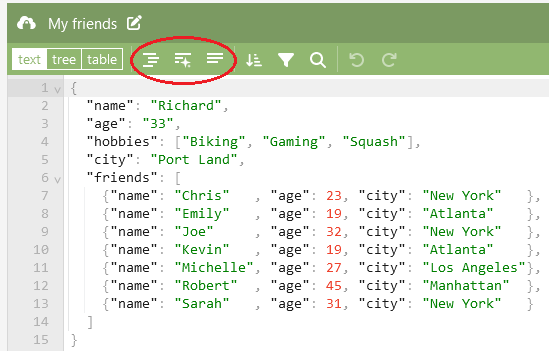
Use this free JSON formatter and validator to beautify, minify and check JSON in your browser. Paste your JSON, click Format, and get clean, readable output with the indentation you choose. If something is wrong, you get a clear message with the exact line and column and a pointer to the problem, instead of a cryptic error. Numbers are kept exactly as written, and nothing you paste is uploaded or stored.
How to use
- Paste your JSON into the first box.
- Choose an indent style, and tick Sort keys if you want keys in alphabetical order.
- Click Format to beautify, Minify to shrink, or Validate to just check it.
- If there’s an error, read the message, then click Show error position to jump to it.
- Click Copy result to copy the output.
Common JSON errors and fixes
- Trailing comma: remove the comma after the last item.
- Single quotes: JSON needs double quotes around text and keys.
- Unquoted keys: write
"name", notname. - Comments: JSON does not allow
//or/* */. - Missing comma or bracket: the error pointer shows where the problem starts.
FAQs
- What is JSON? A text format for sharing structured data, used by most websites and apps.
- What is the difference between Format and Minify? Format adds line breaks and indentation to make it readable. Minify removes all unnecessary spaces to make it smaller.
- Why does my JSON show an error when it works in JavaScript? JavaScript objects allow things JSON does not, like single quotes, comments and trailing commas.
- Is my JSON uploaded? No, it stays in your browser.
- Does it change my numbers? No, they stay exactly as you wrote them.
Why Use an Online JSON Formatter?
JSON is widely used to exchange information between websites, applications, servers, and software tools. However, JSON data can sometimes be difficult to read when it is compressed into a single line or contains inconsistent spacing. An online JSON formatter helps organize this data into a structured layout that is easier to inspect and understand.
Our free JSON Formatter and Validator is designed to make working with JSON more convenient. You can format data for readability, minify it to remove unnecessary whitespace, and validate its syntax before using it in your project. These features are useful for developers, students, testers, and anyone who works with structured data.
What Is the Difference Between JSON Formatting and Validation?
JSON formatting changes how the data is displayed without intentionally changing its underlying structure. For example, a formatted JSON object can place each key and value on a separate line with consistent indentation. This makes nested objects and arrays easier to follow.
JSON validation checks whether the input follows JSON syntax rules. It can help identify problems such as missing quotation marks, incorrect commas, unmatched brackets, or invalid values. Fixing these errors before sending data to an application can save debugging time.
Formatting and validation serve different purposes. A JSON document may be valid but difficult to read, while an invalid document may need corrections before it can be formatted successfully.
What Is JSON Minification?
JSON minification removes unnecessary spaces, indentation, and line breaks from JSON text. The result is usually shorter and easier to transmit when whitespace is not needed for readability.
For example, a neatly formatted JSON document may contain multiple lines and spaces. Its minified version can place the same structure on a single line. This can reduce the size of the text, although the actual savings depend on the content.
Minification does not automatically compress a file like ZIP compression does. It simply removes unnecessary whitespace from the JSON representation. Always keep a readable copy when you need to review or edit the data later.
Where Is JSON Used?
JSON is used in many areas of modern software development.
Web APIs: Websites and applications commonly exchange data in JSON format when communicating with services.
Application configuration: Some applications use JSON files to store settings and structured information.
Web development: Developers use JSON to represent objects, lists, user information, product details, and other data.
Testing and debugging: Formatting JSON can make API responses easier to inspect during development.
Data integration: Different systems can exchange structured information using a shared JSON representation.
Understanding JSON syntax can help you troubleshoot data-related problems and work more confidently with modern web technologies.
Tips for Working with JSON Safely
Before using JSON in a website or application, check that the structure is valid and that the expected fields contain appropriate values. Pay attention to quotation marks, commas, brackets, arrays, and nested objects.
If your JSON contains private information, API credentials, passwords, access tokens, or customer records, avoid pasting it into online tools unless you have confirmed that the tool’s privacy and security practices meet your requirements. Never share production secrets in public examples or screenshots.
For important projects, keep a backup of the original JSON before making changes. After formatting or minifying the data, test it in the application or environment where it will be used.
Can a JSON Formatter Change My Data?
A formatter should preserve the meaning and structure of valid JSON while changing its presentation. Minification removes unnecessary whitespace, while formatting adds indentation and line breaks for readability.
However, the exact behaviour depends on how the tool processes the input. In particular, very large numeric values can lose precision when processed through ordinary JavaScript number handling. If exact numeric preservation is important, use a formatter specifically designed to preserve the original numeric representation.
Always review important output before using it in a production application.
Format and Validate JSON Online for Free
Use the FunnLearnn JSON Formatter and Validator to make JSON data easier to read, check syntax, and create compact output when needed. Paste your JSON, select your preferred indentation, and choose the action that suits your task.
Whether you are debugging an API response, learning JSON syntax, preparing configuration data, or organizing a complex object, this free online tool provides a convenient place to start. Check your output before using it in a live application, especially when the data is business-critical.
Privacy note: Use this tool with non-sensitive data unless you have verified its current processing behaviour. The tool’s privacy claims should reflect how the implemented code actually handles and stores user input.